Add a video to a question or media-enabled Section, then wait until Letterloop finishes processing it before you submit.
Applies to: Web, iPhone/iPad, Android
Who can do this: Contributor
Letterloop uploads and processes reply video before it can play. When processing finishes, playback is available at up to 1080p. Upload completion and video processing are separate steps, so a large or long clip can keep processing after its bytes finish uploading.
Open your Issue reply and find a question or Section that accepts media.
Select the camera-shaped Add photo or video control below the question or Section.
Choose a video from your device, then keep the reply page open while it uploads.
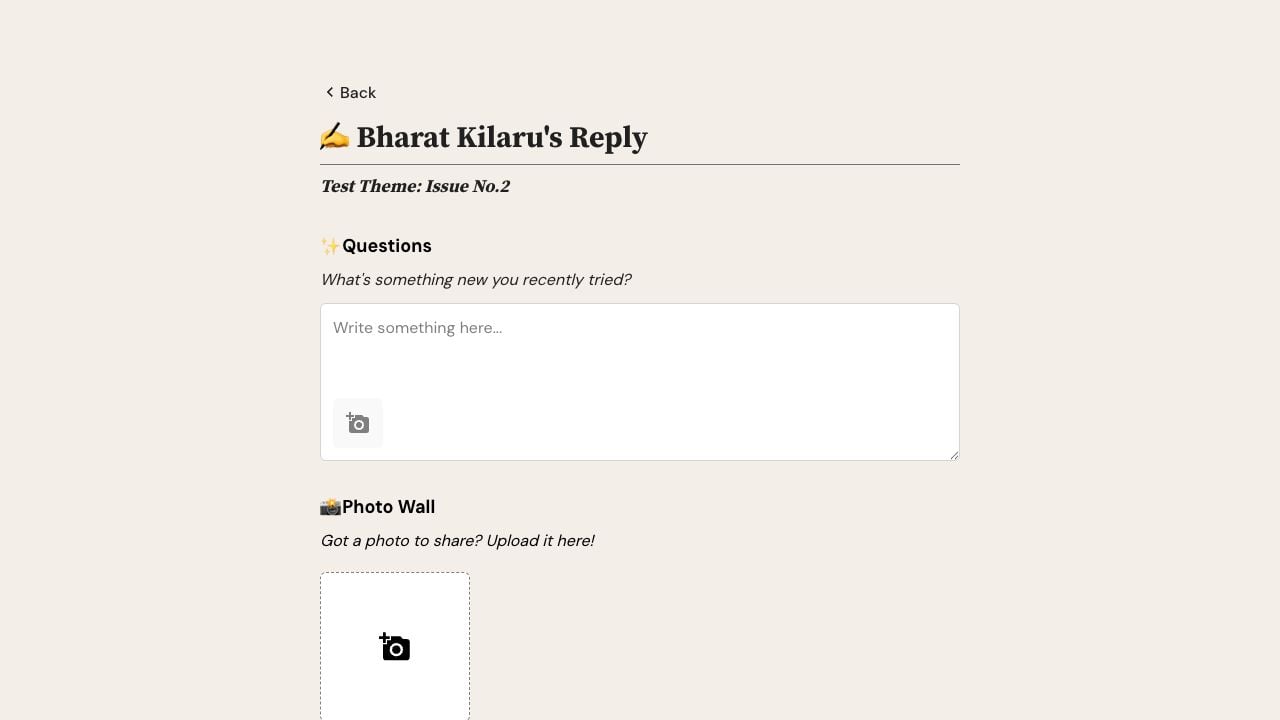
On web, select the camera-shaped Add photo or video control below a question or in a media-enabled Section, then choose a video from your device.
Tap the photo/media icon beside a question, or Add a Photo or Video in a media-enabled Section.
Choose Choose from Library and select a video. To record a new clip, choose Take Photo or Video.
Tap the photo/media control beside a question, or Add a Photo or Video in a media-enabled Section.
Choose Choose from Library and select a video. To record a new clip, choose Record Video and allow camera and microphone access when asked.
Keep Letterloop open on a stable connection while the video uploads.
Wait until Uploading or Processing clears and the finished preview appears.
Add any available caption, then share the reply or submit your edits.
Expected result: The finished video preview remains attached to the reply, and Letterloop no longer blocks submission for a processing upload.
Web: each video can be up to 1 GB.
iPhone/iPad and Android: each video can be up to 500 MB.
A question or multi-upload media Section can allow up to 10 media items. A single-upload Section allows one. Follow the slots and limit message shown in the composer.
An upload that never completes is not a saved backup. Letterloop cleans up incomplete upload records after about 24 hours. If the clip is still available on your device, remove the failed item and upload it again.
Note: Do not submit while the composer still says a video is uploading or processing.
Refresh the web page or update Letterloop, then confirm photo-library access. If you are recording in the app, also allow camera and microphone access.
Move to a more reliable Wi-Fi or mobile connection.
Keep the screen active and avoid switching accounts during upload.
Remove and retry the clip once.
If a selected video on iPhone or iPad never starts uploading, sign in to Letterloop on the web with the same account, reopen the same Issue reply, and upload the video there.
Contact support with the platform, app version, approximate time, and whether the problem occurred during selection, upload, or processing.