Use emoji reactions to respond to a question reply, Section reply, or poll in a delivered Issue.
Applies to: Web, iPhone/iPad, Android
Who can do this: A Letterloop member who can open the delivered Issue. Public share pages do not show Issue reactions or let viewers add or remove them.
Reactions appear on question replies, Section replies, and polls. Comments have their own comment reactions.
Open the delivered Issue and move the pointer over the reply or poll.
Choose 👍, ❤, or 😂 from the quick-reaction menu, or choose the reaction-plus icon to open the emoji picker.
To remove your reaction, choose the same emoji again. A reaction you selected has a blue outline.
Hover over an existing reaction pill to see its count and the members who chose it.
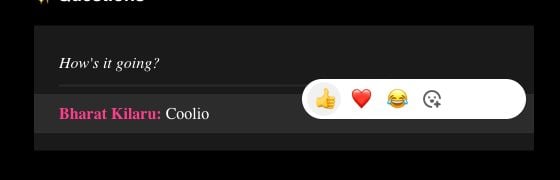
Move the pointer over a reply to reveal the quick-reaction menu; use the reaction-plus icon for another emoji.
Open the delivered Issue and find the reply or poll.
Tap the add-reaction icon, then choose an emoji.
Tap the same reaction pill again to remove your reaction.
Press and hold the reaction row to open reaction details. Your own reaction is marked Tap to remove.
Open the delivered Issue and find the reply or poll.
Tap Add reaction, choose a quick emoji, or tap + to open the full picker.
Tap the same reaction pill again to remove your reaction.
Press and hold a reaction pill to open reaction details. Your own reaction is marked Tap to remove.
Expected result: The reaction appears with its count and updates for other members viewing the Issue.
Confirm that you are signed in with the account attached to your Letterloop membership.
Open the delivered Issue from Letterloop instead of a generic public share link.
Check that you are using the reaction control for the intended reply or poll; comments have separate reaction controls.
Refresh the web page or reopen the Issue in the app.
Wait briefly for the live Issue to refresh.
Close and reopen reaction details.
Refresh the web page or reopen the Issue in the app.
Confirm that the reaction was placed on the intended reply rather than a nearby comment.