Share a delivered Issue with someone outside your Letterloop by email, or copy a private view link.
Applies to: Web, iPhone/iPad, Android
Who can do this: Any Owner, Admin, Contributor, or Reader who can open the delivered Issue can share it by email. Only an Owner or Admin can copy the Issue share link.
Share by email sends the delivered Issue's contents to one email address. The recipient does not become a Letterloop member.
Copy a share link gives an Owner or Admin a private view link to the delivered Issue. Anyone with the complete link may be able to open it.
Open the Letterloop and select Issues.
Under Past Issues, open the delivered Issue's Options menu.
Select Share Issue with new recipient, or select Get Issue share link if you are an Owner or Admin.
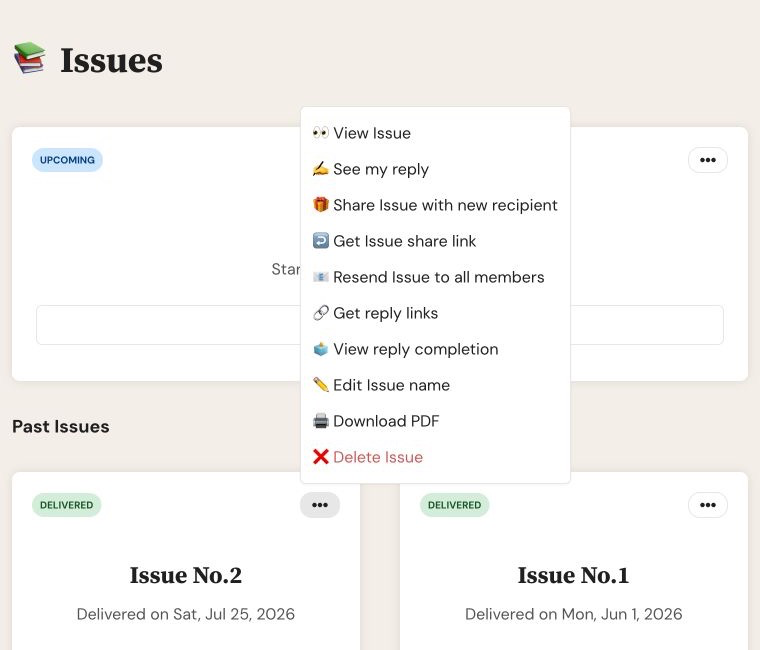
Open a delivered Issue's Options menu to find Share Issue with new recipient and Get Issue share link.
Open the Letterloop, select Issues, and open the delivered Issue's actions.
Owners and Admins can select Share Issue with new recipient or Get Issue share link.
Contributors and Readers can select Share with new recipient.
Select the email-sharing action for your platform and role.
Enter the recipient's email address.
Select Share Issue.
Letterloop sends the delivered Issue's contents to that address. Sharing does not add the recipient to the Letterloop or give them access to other Issues.
Select Get Issue share link.
Read the access warning.
On web, use the copy icon next to Share Link. On iPhone/iPad or Android, select Copy Link.
Send the link only to people who should be able to view that Issue.
Keep the link private: Anyone with the complete link may be able to view the shared Issue, even if they are not a Letterloop member. Never post it publicly.
An Issue sent by email is a delivered snapshot. Later edits do not rewrite an email that was already sent.
A live Issue share link can reflect later content changes. A viewer who is not a member can read the shared Issue but cannot add member comments or reactions.
Sharing does not grant access to the member list, reply composer, Letterloop settings, or other Issues.
When someone needs ongoing access or should join the conversation, invite them with the appropriate Reader or Contributor link instead.
Confirm that the Issue is under Past Issues and marked Delivered. These sharing actions are not available for Upcoming or In Progress Issues.
If Get Issue share link is missing, confirm that you are an Owner or Admin.
If the email address is rejected, remove spaces or typing errors and enter a complete address.
If the email does not arrive, wait a few minutes, ask the recipient to check spam or junk, verify the address, and then make one fresh attempt.
If the recipient needs membership rather than a one-time view, send the correct invitation instead.