Export a delivered Issue as a standalone PDF you can download, save, print, or share.
Applies to: Web, iPhone/iPad, Android
Who can do this: Any signed-in Owner, Admin, Contributor, or Reader who belongs to the Letterloop and can open the delivered Issue.
Open the Letterloop and choose Issues.
Under Past Issues, find the delivered Issue.
Open the Issue's three-dot Options menu and choose Download PDF.
Keep the page open while Generating PDF... appears. When the file is ready, your browser downloads Letterloop Issue No.[number].pdf automatically and Letterloop shows Generated PDF.
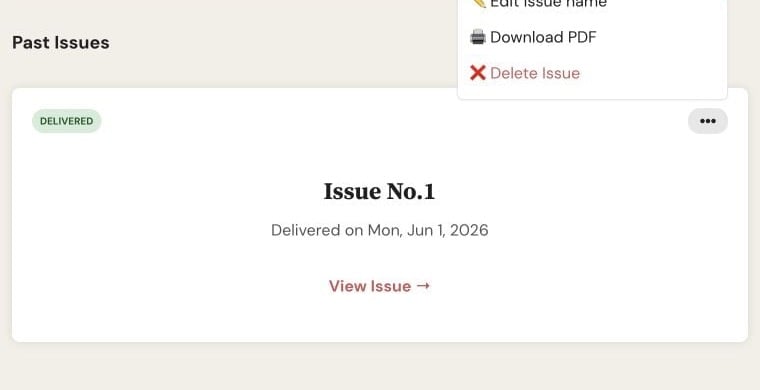
On web, open the delivered Issue's three-dot Options menu and choose Download PDF.
Open the Letterloop, choose Issues, and find the delivered Issue.
Open the Issue actions. Admins see Export Issue to PDF; Contributors and Readers see Export to PDF.
Review the export sheet and choose Export to PDF. The button changes to Exporting... while Letterloop works.
When the PDF is ready, it opens in your browser. Use your device's browser or share controls to save or share the file.
Letterloop queues the PDF render and waits for the finished file. It can take a minute, especially for an Issue with many replies or media items. Keep Letterloop open and do not start several exports just because the first one is still generating.
The PDF reflects the Issue content available to the renderer for that export. A late reply or edit does not update a PDF file you already saved. Generate a new PDF after important changes. Interactive features such as comments, reactions, and video playback do not behave as they do in the live Issue.
A downloaded PDF is a standalone copy outside Letterloop. Anyone who receives it can open or forward it according to their file access, so store and share it as carefully as the original Issue.
Confirm that the Issue is delivered; PDF export is not available for Upcoming or In Progress Issues.
Keep Letterloop open while generation runs, and allow the mobile app to open the finished browser link.
After a timeout or renderer error, wait a moment and retry once.
If it fails again, contact support with the Issue number, Letterloop name, platform, and approximate export time.